> ## Documentation Index
> Fetch the complete documentation index at: https://helpdocs.gavel.io/llms.txt
> Use this file to discover all available pages before exploring further.
# Install Gavel Exec Add-In for Word
> Add the Gavel Exec add-in to Microsoft Word from Microsoft AppSource, set up your account, and troubleshoot common deployment errors.
## Set up your account
Go to [exec.gavel.io](https://exec.gavel.io/) to create or sign in to your Gavel Exec account. Once signed in, you will be in the Exec on the Web and can begin utilizing Exec. To be able to redline specific documents and create playbooks, projects, etc., you will need to use the Microsoft Word add-in.
## Install the add-in
You have three options to get Gavel Exec into Microsoft Word:
In a Word Template, go to **Home Ribbon** → **Get Add-Ins** (labeled **Office Add-ins** in some versions of Word)
 In the search bar, type **Gavel Exec** and select the result.
Click **Add** to install the add-in. The Gavel Exec panel will appear in the right-hand side panel of Word.
Go to [word.new](http://word.new) and open or create a document.
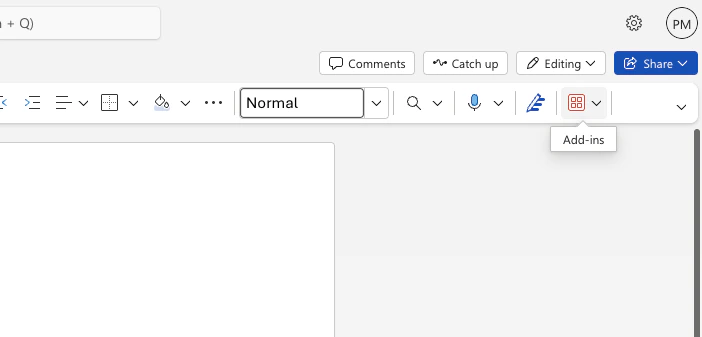
On the Home tab, click Add-ins (right side of the ribbon).
Type Exec in the search box. Alternatively, click More Add-Ins and search the Microsoft Store directly.
In the search bar, type **Gavel Exec** and select the result.
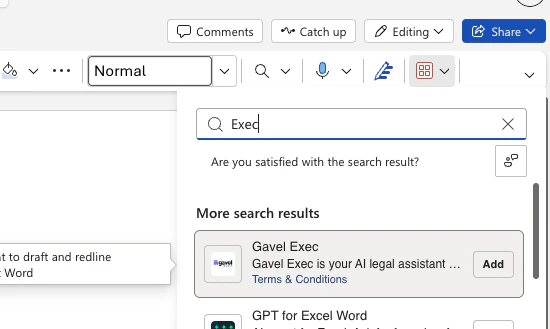
Click **Add** to install the add-in. The Gavel Exec panel will appear in the right-hand side panel of Word.
Go to [word.new](http://word.new) and open or create a document.
On the Home tab, click Add-ins (right side of the ribbon).
Type Exec in the search box. Alternatively, click More Add-Ins and search the Microsoft Store directly.
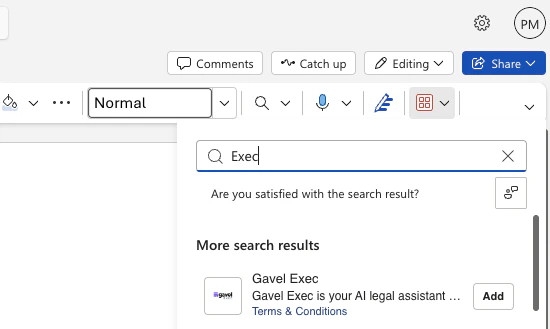 Click Add next to Gavel Exec, then sign in with your account.
 Visit the [Gavel Exec listing on Microsoft AppSource](https://appsource.microsoft.com/en-us/product/office/WA200008441?tab=Overview) and click **Get it now** to add it to your Microsoft 365 account.
## Troubleshooting deployment errors
If you see an error when trying to install or load the add-in, work through the options below.
If you encountered an error installing from a browser, open Microsoft Word and use **Home Ribbon** → **Get Add-Ins** (or **Office Add-ins**) to install Gavel Exec directly from within the application instead.
Cached data from a previous session can interfere with the installation flow. Clear your browser cache or open a private/incognito window and attempt the installation again.
If your organization manages Microsoft 365 centrally, an admin may need to enable the add-in:
1. Sign in to the [Microsoft 365 Admin Center](https://admin.microsoft.com/).
2. Go to **Settings** → **Integrated Apps**.
3. Verify that app deployment is enabled and that Gavel Exec is not blocked.
This step requires Microsoft 365 admin privileges. Contact your IT administrator if you don't have access.
If the add-in loads but behaves unexpectedly, clearing Word's add-in cache often resolves the issue:
1. In Microsoft Word, go to **File** → **Options** → **Trust Center** → **Trust Center Settings**.
2. Select **Trusted Add-in Catalogs**.
3. Check the box labeled **Next time Office starts, clear all previously-started web add-ins cache**.
4. Click **OK**, close Word fully, and restart it.
If none of the troubleshooting steps resolve your issue, contact Gavel support through the [Contact page](/contact).
Visit the [Gavel Exec listing on Microsoft AppSource](https://appsource.microsoft.com/en-us/product/office/WA200008441?tab=Overview) and click **Get it now** to add it to your Microsoft 365 account.
## Troubleshooting deployment errors
If you see an error when trying to install or load the add-in, work through the options below.
If you encountered an error installing from a browser, open Microsoft Word and use **Home Ribbon** → **Get Add-Ins** (or **Office Add-ins**) to install Gavel Exec directly from within the application instead.
Cached data from a previous session can interfere with the installation flow. Clear your browser cache or open a private/incognito window and attempt the installation again.
If your organization manages Microsoft 365 centrally, an admin may need to enable the add-in:
1. Sign in to the [Microsoft 365 Admin Center](https://admin.microsoft.com/).
2. Go to **Settings** → **Integrated Apps**.
3. Verify that app deployment is enabled and that Gavel Exec is not blocked.
This step requires Microsoft 365 admin privileges. Contact your IT administrator if you don't have access.
If the add-in loads but behaves unexpectedly, clearing Word's add-in cache often resolves the issue:
1. In Microsoft Word, go to **File** → **Options** → **Trust Center** → **Trust Center Settings**.
2. Select **Trusted Add-in Catalogs**.
3. Check the box labeled **Next time Office starts, clear all previously-started web add-ins cache**.
4. Click **OK**, close Word fully, and restart it.
If none of the troubleshooting steps resolve your issue, contact Gavel support through the [Contact page](/contact).